
How to View Item Sales Report
This guide explains how to generate and download an Item Sales Report in the Basket Point of Sale system.
Generate an Item Sales Report
- From the navigation menu in the upper-left corner of the screen, select Sales > Item Sales Report.
You will be able to filter the sales performance data of an item relative to the time period of your choosing. Please select from the drop-down menu on the left the period you wish to analyze.
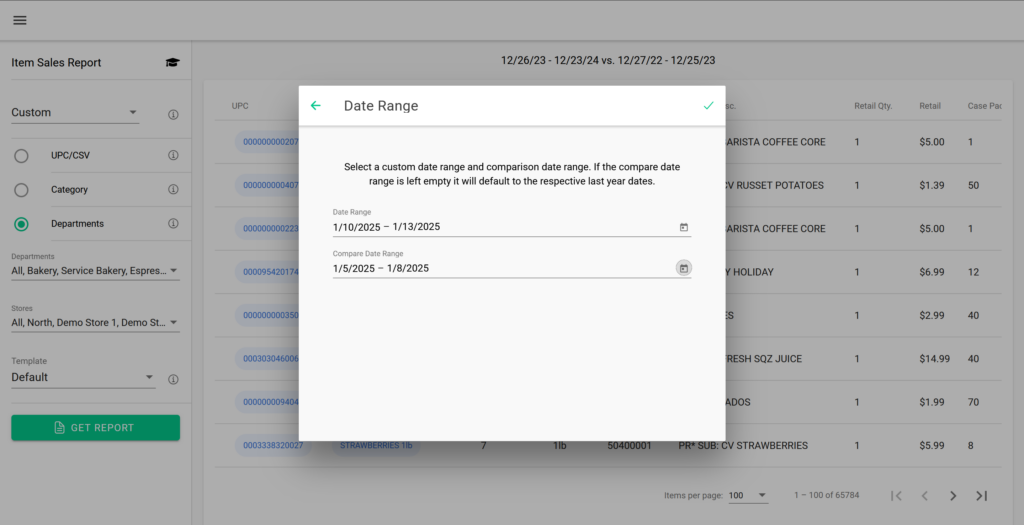
Filter Report Data
You can narrow the report results using one or more of the following filters:
UPC/CSV:
Filter the report by specific products using their Universal Product Code (UPC).
- Click Add Items.
- Search for an item by UPC or Item Name.
- Select the item to add it to the report.
Category:
- Click Add Category.
- Search by Category Name or Category Number.
- Select the category to add it to the report.
Department:
Filter the report by one or more product departments.
- Open the Department drop-down menu.
- Select the department(s) you want to include in the report.
Stores:
Limit the report to specific store locations.
- Open the Stores drop down.
- Choose one or more scores from the list.
Template:
Control which columns are displayed in the report.
- By default, all available columns are included.
- Click Add New to create a custom report template.
- Drag and drop fields from Available Columns to Selected Columns to customize the report layout.
Generate the Report
After selecting your filters, click Get Report to generate the report.
Download the Report
To save a copy of the report, click Export Excel at the top right of the report. The report will be downloaded as an .xlsx (Microsoft Excel) file.