
Inventory counts you can trust.
Receive stock, record shrink and correct counts from a handheld. Inventory levels update on their own as items sell through the register.
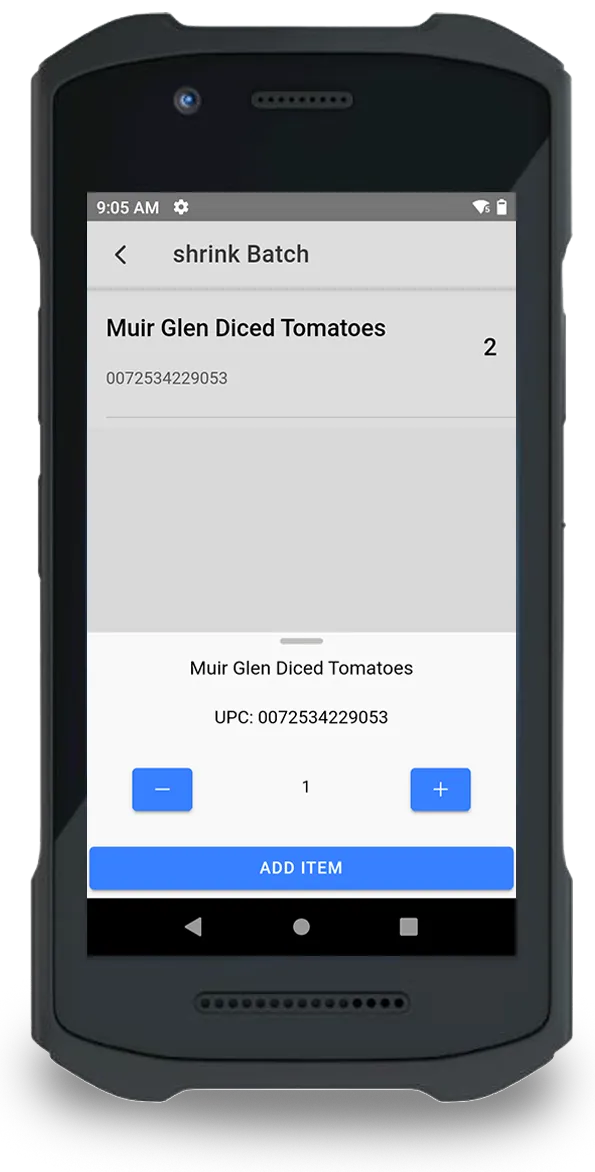
Three kinds of batch, one source of truth
Set your starting levels
Create a Receive or Adjustment batch for a store, add items by scanning or searching by UPC or description, and enter the quantities on hand.
Receive new stock
When a delivery arrives, create a Receive batch and add what came in. Swipe an item to edit or delete it before you submit.
Track shrink as it happens
Whenever product leaves your stock without being sold, record it in a Shrink batch to remove it from your inventory levels.
Correct after a count
Counts drift, and theft or mistakes can cause untracked shrink. Run a periodic count and use an Adjustment batch to set items to their known levels.
Sales keep it current
Once levels are set, every item sold through the POS reduces inventory automatically.
Know what is on hand
The Inventory on Hand report shows quantity, average sold per day and an estimate of how many days of stock you have, by department and store.
Spot shrink by department and store
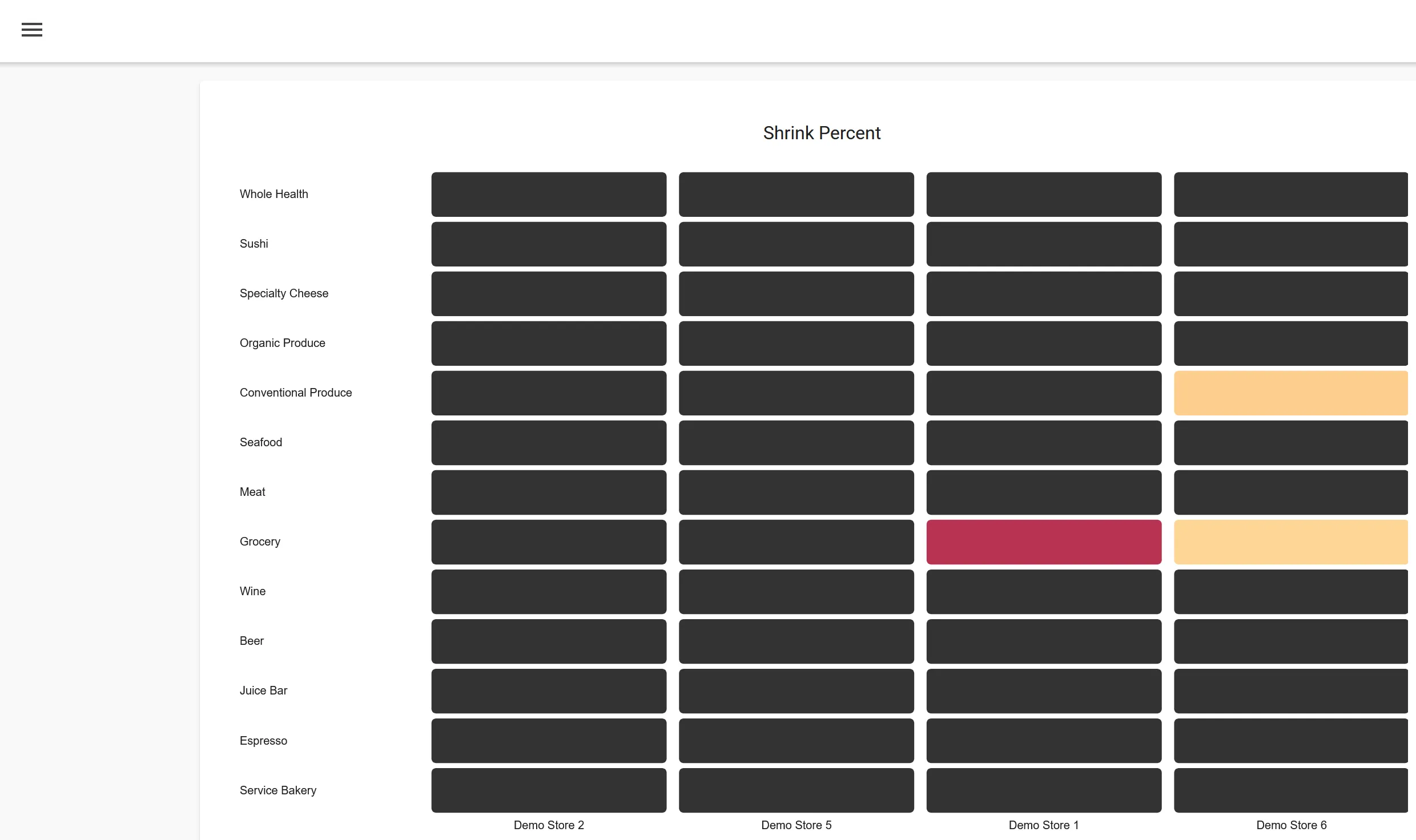
The shrink dashboard shows shrink percent across departments and stores, so problem areas stand out. Filter the Shrink Report by item, category or department to dig in.
- Pick a time period, with the same dates last year for comparison
- Filter by UPC, category or department
- Upload a CSV of items to run a report on your own list
At a glance
- Batch types
- Receive, Shrink and Adjustment.
- Devices
- Handheld scanner for receiving and inventory work.
- Updates
- Automatic as items sell through the POS.
- Reports
- Inventory on Hand, Shrink Report and Shrink Dashboard.
- Note on batches
- Submitted batches cannot be undone, so review before you submit.
- Note on reports
- Only items with an initial inventory level appear in Inventory on Hand.
Common questions
How do I start tracking inventory?
Create a Receive or Adjustment batch for a store, add your items with their on-hand quantities, and submit the batch. From then on, receive stock, record shrink and adjust after counts using batches.
Does inventory update when I sell something?
Yes. As inventory is sold through the POS, inventory levels stay up to date automatically.
Can I undo a batch after I submit it?
No. Submitted batches cannot be undone, and a batch only changes inventory levels once you submit it. Review the batch first.
Why is an item missing from the Inventory on Hand report?
The report only lists items that have had an initial inventory level set. Items that exist in the system or have sold, but never had a level set, will not appear.
Can I scan items when I receive stock?
Yes. You can add items by scanning or by searching for the UPC or description.
The rest of the Basket platform.
- Point of sale
Cloud checkout that works with any processor and keeps selling offline.
- Back office
Items, pricing, taxes, users and tags in one place, tied to the lanes.
- Pricing and promotions
Margin-based price rules, TPRs and promotions, with discount reporting.
- Analytics and reporting
Real-time dashboards and a report builder for sales, margin and shrink.
- Customer engagement
Points, offers and club rewards in a shopper app tied to checkout.
- Ecommerce
A branded online store with pickup, delivery and a picking app, on your own catalog.
- Purchasing and vendors
Purchase orders by vendor and store, with vendor records and costs in one place.
- AI invoice scanning
Scan a vendor invoice to receive a delivery, and create new products from the same scan.
- Tag printing
Design your own tags and print them with each store’s prices to Zebra or PDF.
See inventory management in action.
Tell us about your stores and we will reply by email to set up a demo.
Already a customer? Contact support.